This is the full developer documentation for Taprel
# Introduction
Page: https://taprel.com/docs
> Print from your web app with no print dialog.
Taprel prints receipts, labels and PDFs straight from your web app, with no print dialog.
## How it works
1. **Your web app** calls `@taprel/sdk`, or `@taprel/react` and `@taprel/vue`, which are built on it.
2. **The Taprel app** gets the job. It runs in the tray on each Windows PC with a printer, installed once.
3. **The printer** prints it: a receipt printer, a label printer, or any printer with a Windows driver.
Print jobs go from your page to the app on the same PC, never through our servers. The first time a website prints, the person at the computer allows it once.
Want to see it first? Try the [demo](https://taprel.com/demo).
## Next steps
- [Quick start](https://taprel.com/docs/quick-start)
A printed receipt in about five minutes.
- [Receipts](https://taprel.com/docs/receipts)
Rows, pictures, QR codes and barcodes.
- [Labels](https://taprel.com/docs/labels)
Text and barcodes at exact positions.
- [Going live](https://taprel.com/docs/going-live)
Your customers' PCs, and a plan for your website.
Building with an AI assistant? Give it [llms-full.txt](https://taprel.com/docs/llms-full.txt): all of these docs in one text file.
# Quick start
Page: https://taprel.com/docs/quick-start
> From nothing to a printed receipt in about five minutes, in JavaScript, React or Vue.
You need a Windows PC with a printer that already prints from Windows, and a web app built with a bundler, such as Vite.
## 1. Install the app
Download the Taprel app (the file ending in `_x64-setup.exe`) and run it on the PC with the printer. It needs no admin rights, and after a short guide it runs in the tray, next to the clock.
> [!CAUTION] Windows may warn you
>
> The installer isn't code-signed yet, so Windows may say "Windows protected your PC". Click **More info**, then **Run anyway**.
In the app, open **Printers** and check that your receipt printer's type is **Receipt**.
## 2. Add the package
```sh tab="JavaScript"
npm install @taprel/sdk
```
```sh tab="React"
npm install @taprel/react
```
```sh tab="Vue"
npm install @taprel/vue
```
`@taprel/react` and `@taprel/vue` include `@taprel/sdk`, so everything in it can be imported from them too.
## 3. Set it up
```ts tab="JavaScript"
// src/printer.ts: import it wherever you print.
import { PrintClient } from "@taprel/sdk";
export const printer = new PrintClient();
```
```tsx tab="React"
import { TaprelProvider } from "@taprel/react";
export default function App() {
return (
);
}
```
```ts tab="Vue"
import { createApp } from "vue";
import { createTaprel } from "@taprel/vue";
import App from "./App.vue";
createApp(App).use(createTaprel()).mount("#app");
```
This connects nothing yet, so opening a page never asks anything. The first print connects.
## 4. Print a receipt
```ts tab="JavaScript"
import { receipt } from "@taprel/sdk";
import { printer } from "./printer";
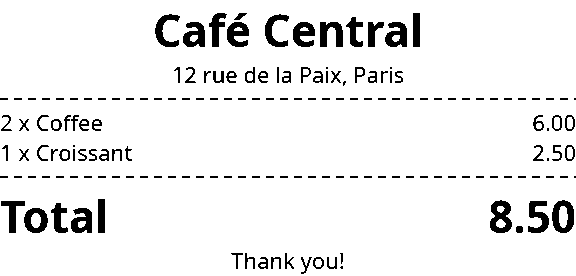
await printer.printDocument(
receipt([
{ text: "Café Central", align: "center", bold: true, size: 2 },
{ text: "12 rue de la Paix, Paris", align: "center" },
{ line: "dashed" },
{ row: ["2 x Coffee", "6.00"] },
{ row: ["1 x Croissant", "2.50"] },
{ line: "dashed" },
{ row: ["Total", "8.50"], bold: true, size: 2 },
{ text: "Thank you!", align: "center" },
{ cut: true },
]),
);
```
```tsx tab="React"
import { receipt, usePrint } from "@taprel/react";
function PrintButton() {
const { print, isPrinting } = usePrint();
const printReceipt = () =>
print(
receipt([
{ text: "Café Central", align: "center", bold: true, size: 2 },
{ text: "12 rue de la Paix, Paris", align: "center" },
{ line: "dashed" },
{ row: ["2 x Coffee", "6.00"] },
{ row: ["1 x Croissant", "2.50"] },
{ line: "dashed" },
{ row: ["Total", "8.50"], bold: true, size: 2 },
{ text: "Thank you!", align: "center" },
{ cut: true },
]),
);
return (
);
}
```
```vue tab="Vue"
```
It goes to the printer set as **Receipt**, so it needs no printer name.
## 5. Allow it once
The first time, the app asks **Allow this website to print?** Click **Allow**, and the receipt comes out.
On your own computer this is free, with no account, up to 50 print jobs a day. Nothing came out? See [Troubleshooting](https://taprel.com/docs/troubleshooting).
## Next steps
- [Receipts](https://taprel.com/docs/receipts)
Rows, pictures, QR codes and barcodes.
- [Labels](https://taprel.com/docs/labels)
Text and barcodes at exact positions.
- [Printers](https://taprel.com/docs/printers)
Pick a printer, and check its status.
- [Going live](https://taprel.com/docs/going-live)
Your customers' PCs, and a plan for your website.
# Receipts
Page: https://taprel.com/docs/receipts
> Write a receipt as a plain list, for 58 and 80 mm rolls.
A receipt flows from top to bottom. Its width comes from the printer's paper setting, so one document fits 58 and 80 mm rolls, and it's as long as its content.
## 1. Write it
```ts
import { receipt } from "@taprel/sdk";
const doc = receipt([
{ image: logo, width: 22, align: "center" },
{ text: "Café Central", align: "center", bold: true, size: 2 },
{ text: "12 rue de la Paix, Paris", align: "center" },
{ space: 1 },
{ row: ["Order 1042", "Table 7"] },
{ row: ["7 Nov 2026", "12:41"] },
{ line: "dashed" },
{ row: ["2 x Cappuccino", "7.00"] },
{ row: ["1 x Croissant", "2.50"] },
{ row: ["1 x Orange juice", "4.50"] },
{ line: "dashed" },
{ row: ["Subtotal", "14.00"] },
{ row: ["Tax 10%", "1.40"] },
{ row: ["Total", "15.40"], bold: true, size: 2 },
{ row: ["Card **** 4242", "15.40"] },
{ line: true },
{ text: "Thank you, see you soon!", align: "center" },
{ space: 1 },
{ qr: "https://cafe.example/order/1042", size: 22, align: "center" },
{ barcode: "1042", format: "code128", height: 10, showText: true, align: "center" },
{ cut: true },
{ drawer: true }, // opens the cash drawer plugged into the printer
]);
```
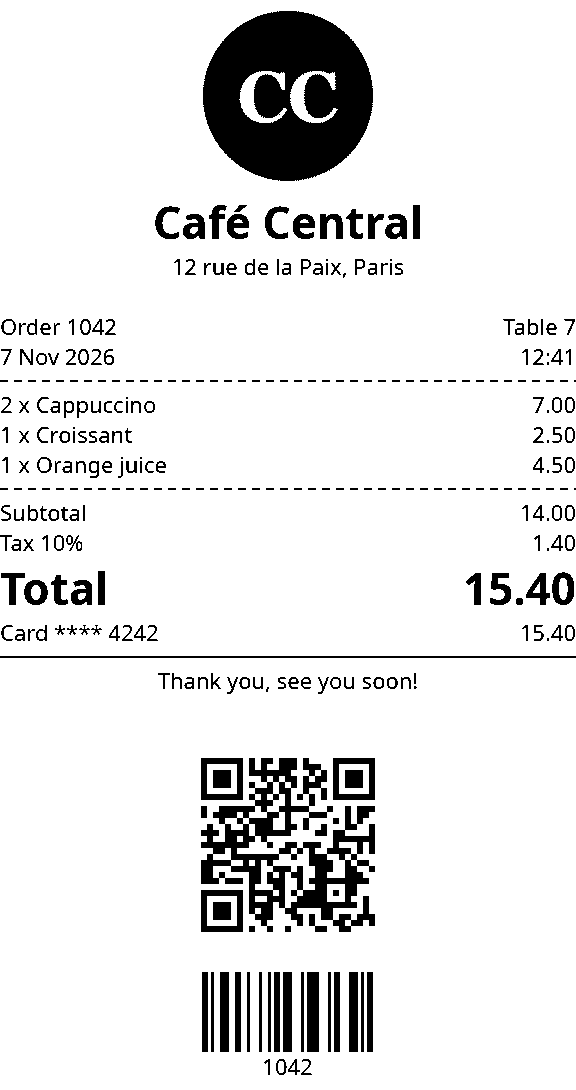
`logo` is your logo's picture, see [Images](#images). On an 80 mm roll it prints this, drawn by the app's own preview:
## 2. Fill it from your data
A document is a plain list, so your own code builds it. `false`, `null`, `undefined`, `0` and `""` are left out, which makes optional lines easy:
```ts
const doc = receipt([
...order.items.map((item) => ({ row: [`${item.qty} x ${item.name}`, item.price.toFixed(2)] })),
order.discount && { row: ["Discount", order.discount.toFixed(2)] },
{ row: ["Total", order.total.toFixed(2)], bold: true },
{ cut: true },
]);
```
## 3. Print it
```ts
await printer.printDocument(doc);
```
It goes to the printer set as **Receipt** in the Taprel app. In React and Vue, pass it to `print` from `usePrint()`, as in the [Quick start](https://taprel.com/docs/quick-start#print-a-receipt).
## Elements
| Element | Fields | Notes |
|---|---|---|
| `text` | `align`, `bold`, `underline`, `size` (1 to 3) | Long text wraps between words |
| `row` | list of texts, `widths`, `aligns`, `bold`, `size` | The first column takes the free space, and the last is aligned to the end. Long text wraps inside its column |
| `line` | `true`, `"dashed"` or `"double"` | Full width |
| `space` | number of empty lines | |
| `image` | `width` (mm), `align` | Turned black and white |
| `qr` | `size` (mm), `align` | |
| `barcode` | `format` (required), `height` (mm), `showText`, `align` | `code128`, `code39`, `ean13`, `ean8`, `upca` or `itf`. `ean13` takes 12 digits, or 13 with the right check digit |
| `cut` | `true` | Feeds the paper first, so the cut never goes through the content |
| `drawer` | `true` | Opens the cash drawer plugged into the printer |
## Images
`image` takes a `Blob`, a `File`, bytes, or base64 text, in PNG or JPEG. The app never downloads pictures, so for a logo at an address, fetch it first: `await (await fetch(url)).blob()`. Use base64 text to save a document as JSON.
## Good to know
- **Align:** `start`, `center` or `end`. `start` is the left for French and the right for Arabic, found from the text.
- **Sizes:** text `size` is 1, 2 or 3. Everything else, like a QR code's `size`, is in mm.
- **Money:** rows take text, not numbers, so a price prints exactly as you wrote it, like `"6.50"`.
- **Line length:** on an ESC/POS printer, text in plain English letters prints in the printer's own font: 48 characters a line on 80 mm paper and 32 on 58 mm, half that at size 2 and a third at size 3. Text with accents or symbols, like `é` or `€`, is drawn as a picture, so it always prints right.
- **Previews** match the paper, except plain English text on ESC/POS: it prints in the printer's own font, so it looks a little different and can wrap differently.
- **Three columns:** `{ row: ["2", "Cappuccino", "7.00"], widths: [1, 4, 2] }` gives each column its share of the width.
- **Elements in a variable** need a type, or TypeScript reads `"center"` as any string: `const title: ReceiptText = { text: "Hi", align: "center" }`, with `import type { ReceiptText } from "@taprel/sdk"`.
- **Mistakes fail early:** an unknown field or a wrong value gives `BAD_REQUEST` with its place, like `content[3].align: must be start, center or end`.
> [!CAUTION] Test your alphabet on paper
>
> Arabic and other joined or right-to-left scripts, and Chinese, Japanese and Korean, are drawn as pictures. A character no font has gives `FONT_MISSING`, never empty boxes. Print a test in your alphabet before you rely on it.
# Labels
Page: https://taprel.com/docs/labels
> Place text, barcodes and QR codes at exact positions on a label.
A label has a fixed size, and everything sits at a position in millimetres, `x` and `y`, from its top-left corner.
## 1. Place the elements
```ts
import { label } from "@taprel/sdk";
const doc = label(
[
{ text: "Organic Coffee 500 g", x: 3, y: 3, width: 44, height: 2.5, bold: true },
{ text: "12.90 €", x: 3, y: 8, width: 30, height: 5 },
{ barcode: "3760123456784", format: "ean13", x: 3, y: 17, width: 30, height: 10, showText: true },
{ qr: "https://cafe.example/p/42", x: 36, y: 15, size: 12 },
{ box: true, x: 1, y: 1, width: 48, height: 28, thickness: 0.3 },
],
{ width: 50, height: 30 },
);
```
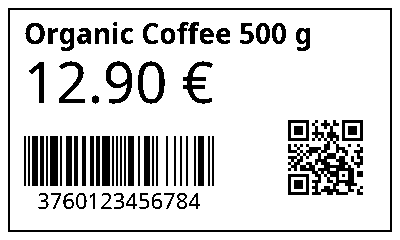
On a 50 × 30 mm label it prints this, drawn by the app's own preview:
## 2. Check the size
The size, `{ width: 50, height: 30 }` above, is optional: without it, the label takes the size set for that printer in the Taprel app. With no size anywhere you get `LABEL_SIZE_MISSING`. A size other than the printer's gives the warning `SIZE_DIFFERS_FROM_PRINTER`, because the wrong roll is probably loaded.
## 3. Preview it
A label's preview is exactly what prints, so you can save paper while you adjust positions:
```ts
const { png } = await printer.previewDocument(doc, { printerKind: "label" });
image.src = `data:image/png;base64,${png}`;
```
## 4. Print it
```ts
await printer.printDocument(doc);
```
It goes to the printer set as **Label** in the Taprel app. In React and Vue, pass it to `print` from `usePrint()`.
## Elements
| Element | Fields | Notes |
|---|---|---|
| `text` | `x`, `y`, `width`, `height` (a capital letter's height, default 3), `bold`, `align` (`start`, `center` or `end`), `rotate` | Wraps inside `width`, which reaches the label's edge by default. Text past the edge is cut off, with the warning `TEXT_CUT_OFF` |
| `barcode` | `format` (required), `x`, `y`, `width`, `height` (default 10, digits included), `showText`, `rotate` | `code128`, `code39`, `ean13`, `ean8`, `upca` or `itf`. Bars snap to whole printer dots so they scan, so a barcode can be narrower than `width`, starting at `x` |
| `qr` | `x`, `y`, `size` (default 15) | |
| `image` | `x`, `y`, `width`, `height` | |
| `box` | `x`, `y`, `width`, `height`, `thickness` (default 0.3) | |
| `line` | `x`, `y`, `width`, `height` (default 0.3) | A filled bar, written `line: true` |
## Good to know
- **Rotate** is 0, 90, 180 or 270.
- **Outside the label:** an element placed outside it gives `BAD_REQUEST`.
- **White space:** leave some around barcodes and QR codes, so they scan.
- **EAN-13** takes its 12 digits, and the app adds the check digit, or all 13 with the right check digit. A wrong one gives `BAD_REQUEST`: `content[0].barcode: not valid for ean13: Invalid checksum`.
# PDFs and raw printing
Page: https://taprel.com/docs/pdfs
> Print PDFs through the Windows driver, or send your own printer commands.
## PDFs
`printPdf` prints on any printer with a Windows driver. It needs the printer's exact name, from `listPrinters()`:
```ts
const pdf = await (await fetch("/invoice.pdf")).blob();
await printer.printPdf("Office printer", pdf, { copies: 2 });
```
Every option is optional:
| Option | Values | What it does |
|---|---|---|
| `copies` | 1 to 100, default 1 | Repeats the whole document in the same job, in order |
| `scale` | `"fit"` (default) or `"actual"` | `fit` makes each page as large as it can be without changing its shape. `actual` keeps the real size, and cuts what falls outside the printable area |
| `paper` | `{ widthMm, heightMm }`, 10 to 1000 mm | Replaces the driver's paper size for this job. If the driver refuses it, the job fails with `PRINT_FAILED`, saying so |
A file that isn't a PDF gives `BAD_REQUEST`. In React and Vue, `usePrint()` gives the same call as `printPdf`.
## Raw printing
`printRaw` sends your bytes unchanged, so they must be in the printer's own language, like ESC/POS, TSPL or ZPL. Most apps should use [receipts](https://taprel.com/docs/receipts) and [labels](https://taprel.com/docs/labels) instead, which Taprel turns into each printer's language for you.
```ts
await printer.printRaw("Front desk receipt", bytes);
```
For both calls, the data is a `Uint8Array`, `ArrayBuffer`, `Blob`, or a string already in base64.
# Printers
Page: https://taprel.com/docs/printers
> Set up each printer in the app, pick one from your code, and what Taprel prints on.
## 1. Set up each printer in the app
On the app's **Printers** page, each printer has:
- **Type:** Receipt, Label or Regular. The app guesses it from the name.
- **Printer language:** ESC/POS, TSPL, ZPL or driver. **Find it** prints a small test in each and asks which one came out right.
- **Paper width** for a receipt printer, or **Label size** for a label printer, from the box or the roll.
- **Resolution:** 203 dpi by default, or 300 dpi.
- **Main printer of this type:** the one to use when several have the same type.
## 2. Pick one from your code
On its own, a print goes to the printer of the document's type: a receipt to the receipt printer, a label to the label printer. So your code needs no printer names. To pick another type:
```ts
await printer.printDocument(doc, { printerKind: "label" });
```
- With one printer of that type, it uses that one.
- With several, it uses the one marked as main.
- With several and none marked, you get `PRINTER_NOT_CHOSEN`.
Or pass an exact name, like `{ printer: "Front desk receipt" }`. In React and Vue, `print` from `usePrint()` takes the same options.
To let the customer choose, list the printers with `listPrinters()`, or `usePrinters()` in React and Vue. Their fields are on [API](https://taprel.com/docs/api#printers).
## 3. Check its status
Each printer in the list has a `status`: `ready`, `offline`, `paused`, `paperJam`, `paperOut`, `doorOpen`, `noToner` or `error`. It's what Windows reports, and many low-cost printers never report paper problems.
## What Taprel prints on
- **Receipt printers** that speak ESC/POS, the language almost every receipt printer uses, on 58 or 80 mm rolls.
- **Label printers** that speak TSPL or ZPL.
- **Any printer with a Windows driver,** through the `driver` route, which draws the document as a picture. It's the safe choice for a printer whose language you don't know. Cutting and the cash drawer don't work this way, and give a warning instead: `CUT_NOT_AVAILABLE` or `DRAWER_NOT_AVAILABLE`.
The app's test print shows in a few seconds whether a printer works, so try yours before you rely on it.
A printer that saves to a file, like Microsoft Print to PDF, asks where to save each time, so it can't print silently. `listPrinters()` gives it `canPrintSilently: false`.
The app runs on Windows for now, and pages print from it in Chrome and Brave.
# Going live
Page: https://taprel.com/docs/going-live
> Your customers' PCs, the two questions they answer, and a plan for your website.
Each PC that prints needs the Taprel app, and your website needs a plan.
## 1. Install the app on each PC
Send your customers the same download as yours: the latest release, the file ending in `_x64-setup.exe`. It installs for the Windows user with no admin rights, starts with the computer, runs in the tray and updates itself.
> [!CAUTION] Windows may warn you
>
> The installer isn't code-signed yet, so Windows may say "Windows protected your PC". Click **More info**, then **Run anyway**.
Then, on the app's **Printers** page, check each printer's type and paper. See [Printers](https://taprel.com/docs/printers).
## 2. The two questions
The first time your website prints, the person at the computer answers two questions, once:
| Who asks | The question |
|---|---|
| The browser, on a real website (never on `localhost`) | "Access other apps and services on this device" |
| The Taprel app, in a small window in the middle of the screen | "Allow this website to print?" |
They come with the first request, or with `connect()`, so you can call `connect()` at a moment that makes sense, like when the customer opens your printing settings. Show them what to click:
```ts tab="JavaScript"
import { browserPermissionTexts } from "@taprel/sdk";
import { printer } from "./printer";
printer.onStatusChange((status, error) => {
if (status === "waiting-for-browser") show(browserPermissionTexts.beforeQuestion);
else if (status === "waiting-for-agent") show('Answer "Allow this website to print?" on your screen.');
else if (error?.code === "BROWSER_BLOCKED") show(browserPermissionTexts.afterBlock);
else show(error?.message ?? "");
});
```
```tsx tab="React"
import { PrintHelp } from "@taprel/react";
export function PrinterHelp() {
return ;
}
```
```vue tab="Vue"
```
`PrintHelp` shows the right words while a question waits or when something is wrong, and nothing when all is well. In Brave, ask your customers to set **Remember my decision** to **forever**, or Brave asks again on the next visit.
## 3. Put your domain on a plan
Create your Taprel account and add your domain on the **Domains** page. That starts a 14-day trial with no card, and its subdomains print too. Subscribe on the **Billing** page before it ends, or printing stops.
| Plan | Monthly | Yearly | Includes |
|---|---|---|---|
| Starter | $9 | $90 | 1 domain, 5 computers |
| Pro | $29 | $290 | Unlimited domains, 50 computers |
On your own computer, `localhost` is free with no account, up to 50 print jobs a day. A new domain or plan works within a minute.
## More
### Plans and billing
- An account gets one trial, and a domain only ever gets one. A domain that already had a trial can still be added, with no free days.
- A yearly plan costs the same as ten months, with the same limits.
- Prices are in US dollars. Paddle takes the payment, and adds or includes tax depending on your country. Change plan, update your card or cancel on the **Billing** page.
- The Taprel app itself is free: a plan is for printing from websites.
- A computer counts when it first prints for a domain on your account. Removing it on the **Computers** page frees its place.
- Need more than 50 computers? [Email us.](mailto:hello@taprel.com) Your price stays the same as long as you stay subscribed.
### For an agency
The account is whoever pays: you, for your customers' websites, or a business, for its own. One account can hold all your customers' domains, and their PCs count as its computers. A trial and Starter cover one domain, so for several customers, choose Pro.
### How domains are matched
- A listed domain also covers its subdomains, so `shop.com` covers `a.shop.com`. For `order.cafe.example`, list `cafe.example` or `order.cafe.example`.
- The scheme and port don't count.
- Public endings like `vercel.app` can't be listed. List your own address on them instead, like `one.vercel.app`.
### Local addresses, and more than 50 jobs on localhost
Addresses like `192.168.1.10`, and `localhost` past the free limit, need the computer linked to an account on its trial or a paid plan, because they don't say whose they are.
1. In the Taprel app, open **Settings**, go to **Taprel account** and click **Show code**.
2. Type the code on your account's **Computers** page. It lasts 15 minutes.
Printing starts within a minute. When the trial ends with no plan, these addresses stop printing until you choose one.
### If someone says no
- **Block, in the browser,** gives `BROWSER_BLOCKED`. The package stops trying. `browserPermissionTexts.afterBlock` says how to change it.
- **Don't allow, in the app,** gives `ORIGIN_NOT_ALLOWED`, and the app remembers it. Removing the website on the app's **Websites** page lets it ask again.
- **Closing the app's window, or not answering within 2 minutes,** refuses this time only, with the same `ORIGIN_NOT_ALLOWED`. The next request asks again, with no reload needed.
The app treats each exact address as its own website, so `http://` and `https://`, or another port, ask again.
### If your site has a Content-Security-Policy
Add `ws://127.0.0.1:21873` to `connect-src`, or you get the `CONTENT_SECURITY_POLICY` error.
### When a payment fails, or our server can’t be reached
- **A failed payment, an ended plan or too many computers** starts 14 days of warnings. Printing goes on, and we email you. After that, printing stops with `LICENSE_REQUIRED`.
- **If our server can't be reached,** the app keeps using its last answer for up to 30 days. With no usable answer, a job gets `LICENSE_UNAVAILABLE`, and trying again later can work.
### About the app
- **Updates:** it looks for a new version 30 seconds after it starts, then every 6 hours, and installs it when no job is printing.
- **What it keeps:** its settings, the websites it allowed or refused, and the last 200 jobs, on its **Activity** page.
- **Its guide** shows again from **Show the welcome guide** in Settings.
- **Uninstall:** in Windows' Settings, open **Apps**, find **Taprel** and choose **Uninstall**.
### What the app sends us
To check the licence, the app sends the website's address, a random computer ID, its version, and daily job and failure counts per website, and our server sees its IP address. It never sends what you print.
# Cloud printing
Page: https://taprel.com/docs/cloud-printing
> Print from your server, with no browser open, through our API.
Your server sends a print job to Taprel's API, and the Taprel app prints it on the computer you choose. No browser needs to be open, so an online order that arrives at 2 am still prints in the kitchen.
## How it works
1. **Your server** sends a cloud job to `https://api.taprel.com`, naming a computer and a printer.
2. **We keep it** until the Taprel app on that computer fetches it. A computer that's off gets it when it's back, within the time the job may wait.
3. **The app prints it** and reports the result, which your server can read.
The app connects out to us, so nothing is opened on the shop's network. Cloud printing is on Pro, and on the trial for up to 100 cloud jobs. To print from a page open on the same PC, the [Quick start](https://taprel.com/docs/quick-start) is simpler and needs no server.
## 1. Link the computer
Cloud jobs only go to a computer linked to your account:
1. In the Taprel app, open **Settings**, go to **Taprel account** and click **Show code**.
2. Type the code on your account's **Computers** page. It lasts 15 minutes.
Cloud printing is then on. Someone at the computer can turn it off in the app's **Settings**. A computer linked by an older app needs the app updated and the computer linked again.
## 2. Make an API key
On your account's **API keys** page, click **Create key** and give it a name, like "Production server". The key is shown once, starting with `tp_live_`, with a command that prints a test receipt.
Keep it on your server, never in a web page or an app: anyone with it can print on your computers. A key you revoke stops working at once, and the jobs it already sent still print.
## 3. Send a job
In a Linux or Mac terminal, with your key in `TAPREL_API_KEY`:
```sh
curl https://api.taprel.com/v1/jobs \
-H "Authorization: Bearer $TAPREL_API_KEY" \
-H "Content-Type: application/json" \
-d '{"computer": "Kitchen PC", "printer": "receipt",
"document": {"version": 1, "type": "receipt", "content": [
{"text": "Order 1042", "align": "center", "bold": true, "size": 2},
{"row": ["2 x Margherita", "19.00"]},
{"cut": true}]}}'
```
`document` is the same JSON as a print from the browser. The answer, `202`, has the job's ID:
```json
{
"id": "job_01JC8Y3M6V0K9T4Q2W7XHZBN5R",
"status": "queued",
"createdAt": "2026-11-10T14:03:00Z",
"expiresAt": "2026-11-10T15:03:00Z",
"computer": { "id": "cmp_01JC7RG2SM4D6YB8K0TQX3NA5W", "name": "Kitchen PC", "online": true, "lastSeenAt": "2026-11-10T14:02:31Z" }
}
```
`online` is false when the app hasn't been in touch for over two and a half minutes, so your server can warn someone that the kitchen PC is off. The job still waits for it.
From a Node server, build the document with the same `receipt()` and `label()` as in the browser:
```ts
import { receipt } from "@taprel/sdk";
const doc = receipt([
{ text: `Order ${order.id}`, align: "center", bold: true, size: 2 },
...order.items.map((item) => ({ row: [`${item.qty} x ${item.name}`, item.price.toFixed(2)] })),
{ row: ["Total", order.total.toFixed(2)], bold: true },
{ cut: true },
]);
const response = await fetch("https://api.taprel.com/v1/jobs", {
method: "POST",
headers: {
Authorization: `Bearer ${process.env.TAPREL_API_KEY}`,
"Content-Type": "application/json",
"Idempotency-Key": `order-${order.id}`,
},
body: JSON.stringify({ computer: "Kitchen PC", printer: "receipt", document: doc }),
});
const job = await response.json();
```
Any language that sends HTTPS works the same way. `Idempotency-Key` makes a retry safe, see [Send a job only once](#send-once).
## Choose the computer and printer
- **`computer`** is its name, exactly as on the **Computers** page, or its `id`, like `cmp_01JC7RG2SM4D6YB8K0TQX3NA5W`. If two computers share a name, use the `id`. [`GET /v1/computers`](#your-computers) lists both.
- **`printer`** is `receipt`, `label` or `regular`, the printer set as that type in the app on that computer, so the same code works in every shop. Or an exact printer name, when you need one printer in particular.
## Follow a job
```sh
curl https://api.taprel.com/v1/jobs/job_01JC8Y3M6V0K9T4Q2W7XHZBN5R \
-H "Authorization: Bearer $TAPREL_API_KEY"
```
The answer says where it is and what happened, never what it printed:
```json
{
"id": "job_01JC8Y3M6V0K9T4Q2W7XHZBN5R",
"status": "printed",
"computer": { "id": "cmp_01JC7RG2SM4D6YB8K0TQX3NA5W", "name": "Kitchen PC" },
"printer": "receipt",
"content": "document",
"bytes": 214,
"createdAt": "2026-11-10T14:03:00Z",
"sentAt": "2026-11-10T14:03:01Z",
"finishedAt": "2026-11-10T14:03:02Z",
"expiresAt": "2026-11-10T15:03:00Z",
"sends": 1,
"error": null,
"warnings": []
}
```
| Status | Meaning |
|---|---|
| `queued` | Waiting for the computer to fetch it |
| `sent` | The app has it, with no result yet |
| `printed` | The app handed it to Windows' print queue. Like a print from the browser, this doesn't prove paper came out: a printer out of paper still takes the job |
| `failed` | It didn't print. `error` has a code and a message |
| `expired` | The computer didn't fetch it in time |
| `cancelled` | You cancelled it before it was sent |
The last four are final. `warnings` lists [what couldn't be done](https://taprel.com/docs/errors#warnings) on a printed job, like cutting on a printer that can't cut. Any key on your account can read any of its jobs, for 30 days after it ends.
To cancel a job that hasn't been sent yet:
```sh
curl -X DELETE https://api.taprel.com/v1/jobs/job_01JC8Y3M6V0K9T4Q2W7XHZBN5R \
-H "Authorization: Bearer $TAPREL_API_KEY"
```
Once the app has it, a job can't be cancelled, because it may already have printed.
## Errors
A refused request has an HTTP status, a `code` your code can check and an English `message` for your logs:
```json
{ "error": { "code": "COMPUTER_NOT_READY", "message": "Cloud printing is turned off in the Taprel app on this computer. Turn it on in the app's Settings." } }
```
| HTTP | Code | When |
|---|---|---|
| 401 | `UNAUTHORIZED` | No key, or a key that's wrong or revoked |
| 403 | `PLAN_REQUIRED` | The account isn't on Pro or its trial. After a failed payment, cloud printing keeps working through the 14 days of warnings |
| 403 | `TRIAL_LIMIT` | The trial's 100 cloud jobs are used, or this computer already had cloud jobs on another account's trial |
| 403 | `MONTHLY_LIMIT` | This month's 10,000 cloud jobs are used |
| 404 | `COMPUTER_NOT_FOUND` | No computer on the account has that name or ID |
| 404 | `JOB_NOT_FOUND` | No job with that ID on the account, or it ended over 30 days ago |
| 409 | `COMPUTER_AMBIGUOUS` | Several computers have that name. Use its `id` |
| 409 | `COMPUTER_NOT_READY` | The computer isn't linked, was linked by an app too old for cloud printing, or has cloud printing turned off. The message says which |
| 409 | `JOB_NOT_CANCELLABLE` | The job was already sent, or has ended |
| 413 | `TOO_LARGE` | The request is over 10 MB |
| 422 | `BAD_REQUEST` | Something in the body is wrong. `fields` gives each mistake's place, like `document.content[3].align` |
| 422 | `IDEMPOTENCY_CONFLICT` | The `Idempotency-Key` was used in the last 24 hours for a different job |
| 429 | `RATE_LIMITED` | Over 120 requests a minute for this key. `Retry-After` says how many seconds to wait |
A job can also end as `failed` after it was accepted, with the app's own [error codes](https://taprel.com/docs/errors), like `PRINTER_NOT_FOUND`, or one of ours:
- `COMPUTER_NOT_FOUND`: the computer was removed from the account while the job waited.
- `COMPUTER_NOT_READY`: cloud printing was turned off in the app, or the computer was linked again by an older app, while the job waited.
- `PLAN_REQUIRED`: the plan ended while the job waited.
- `DELIVERY_FAILED`: the app got the job 5 times and never reported a result.
## More
### Send a job only once
If your request times out, you can't tell whether the job was made. Send an `Idempotency-Key` header with something unique to the print, like `order-1042`, up to 255 characters, and send the same request again:
- The same key with the same body, within 24 hours, answers the first job again, with the header `Idempotent-Replayed: true`. No second job is made.
- The same key with a different body gives `IDEMPOTENCY_CONFLICT`.
Keys belong to your account, not to one API key. The app never prints the same job twice either, even if it gets it again after a lost connection.
### PDFs and raw bytes
Send a PDF file or bytes in the printer's own language in base64, instead of `document`:
```json
{ "computer": "Office PC", "printer": "regular", "pdf": "JVBERi0xLjQKJcOkw7zDtsOfCjIgMCBvYmoK", "options": { "copies": 2, "scale": "fit" } }
```
```json
{ "computer": "Kitchen PC", "printer": "receipt", "raw": "G0BIZWxsbyBraXRjaGVuCh1WAA==" }
```
A job has exactly one of `document`, `pdf` and `raw`. `options` takes `copies` for a document, the [PDF options](https://taprel.com/docs/pdfs) for a PDF, and nothing for raw bytes. In a document, a picture is a base64 PNG or JPEG.
### Your computers and their printers
```sh
curl https://api.taprel.com/v1/computers \
-H "Authorization: Bearer $TAPREL_API_KEY"
```
```json
{
"computers": [
{
"id": "cmp_01JC7RG2SM4D6YB8K0TQX3NA5W",
"name": "Kitchen PC",
"cloud": "ready",
"online": true,
"lastSeenAt": "2026-11-10T14:02:31Z",
"appVersion": "0.3.0",
"printersReportedAt": "2026-11-10T13:55:12Z",
"printers": [{ "name": "Kitchen receipt", "kind": "receipt", "mainOfKind": true, "status": "ready" }]
}
]
}
```
`cloud` is `ready`, or why the computer can't take jobs: `not_linked`, `needs_relink` (linked by an older app: update it and link again) or `turned_off`. `printers` are the ones the app last reported, which can be out of date: a printer name that's gone fails on the PC with `PRINTER_NOT_FOUND`.
### How long a job waits
A job waits 1 hour for its computer, then ends as `expired`. Set `expiresIn` in seconds, from 60 to 259200 (72 hours), for a ticket that's no use later or an order that can wait for the morning:
```json
{ "computer": "Kitchen PC", "printer": "receipt", "document": { "version": 1, "type": "receipt", "content": [{ "text": "Table 7" }] }, "expiresIn": 600 }
```
The app checks for jobs every minute while it runs, and gets a new one within seconds. A job whose result was lost, like when the computer restarts while printing, is sent again after 5 minutes.
### Limits
- **Pro:** 10,000 cloud jobs a calendar month, counted in UTC. We email you at 80% and at 100%. Need more? [Email us.](mailto:hello@taprel.com)
- **Trial:** 100 cloud jobs in all. A computer gets trial cloud jobs from only one account.
- Every accepted job counts, even if it's cancelled or expires. A refused one doesn't.
- 120 requests a minute per key, 10 MB per request, 10 keys per account.
### What we keep
- **What you print** is kept encrypted until the job ends, then deleted at once. It's never written to our logs, error reports or emails.
- **The job's details:** its status, computer, printer, kind of content, size, times, sends, error and warnings, for 30 days after it ends.
- **An `Idempotency-Key`** for 24 hours, with a fingerprint of the body, never the body.
- **Your API keys:** their name, their first 12 characters and when they were made and last used. Not the key itself, so a lost key can't be shown again: make a new one.
See the [Privacy page](https://taprel.com/privacy) for the rest.
# API
Page: https://taprel.com/docs/api
> Every call, option and field, for JavaScript, React and Vue.
## PrintClient
```ts
import { PrintClient } from "@taprel/sdk";
export const printer = new PrintClient({ client: { name: "my-pos" } });
```
Make one, in a file of its own, and import it wherever you print. Making it connects nothing: the first request does, or `connect()`.
| Option | Default | What it does |
|---|---|---|
| `client` | none | Your app's name, as `{ name: "my-pos" }`, sent when connecting. The Taprel app doesn't show it anywhere yet |
| `reconnect` | `true` | Reconnects by itself when the app starts or restarts |
| `requestTimeoutMs` | 150000 | How long to wait for a reply. It's long because the app's question can wait 2 minutes |
| `url` | The app's address on this computer | Where to connect |
## Calls
| Call | What it does |
|---|---|
| `printDocument(doc, { printer, printerKind, copies })` | Prints a receipt or label. Without `printer` or `printerKind`, it uses the printer whose type matches the document. `copies` is 1 to 100 |
| `previewDocument(doc, { printer, printerKind })` | Draws the document as a base64 PNG, `{ png }`, and prints nothing. See [Previews](#previews) |
| `printPdf(printer, data, { copies, scale, paper })` | Prints a PDF through the printer's driver, see [PDFs](https://taprel.com/docs/pdfs) |
| `printRaw(printer, data)` | Sends bytes unchanged, in the printer's own language |
| `listPrinters()` | The customer's printers, with the fields under [Printers](#printers) |
| `onStatusChange(listener)` | Calls `listener(status, error)` each time the connection changes, see [Status](#status). Returns a function that stops listening |
| `connect()` | Connects now. Gives back `{ agentVersion, protocol }`, or throws a `PrintError`, like `AGENT_NOT_RUNNING` |
| `close()` | Disconnects and stops reconnecting, until the next request or `connect()` |
`data` is a `Uint8Array`, `ArrayBuffer`, `Blob`, or a string already in base64. Connecting, previews and the printer list never need a plan. When a call can't do its job, it throws a `PrintError`, see [Errors](https://taprel.com/docs/errors).
## What a print returns
- `jobId`: the job's number in Windows' print queue. It means Windows has the job, not that paper came out.
- `route`: `commands`, sent in the printer's own language, or `driver`, drawn and sent through its Windows driver.
- `warnings`: [what couldn't be done](https://taprel.com/docs/errors#warnings), like cutting on a printer that can't cut. The rest still printed.
## Previews
```ts
const { png } = await printer.previewDocument(doc);
image.src = `data:image/png;base64,${png}`;
```
A preview needs the app running, but no printer and no plan. With `printer` or `printerKind`, it uses that printer's paper settings. Without them, a receipt is drawn on an 80 mm roll and a label at its own size. A label's preview is exactly what prints. A receipt's is too, except plain English text on ESC/POS, which prints in the printer's own font.
## Status
- `printer.status` is the connection now: `disconnected`, `connecting`, `waiting-for-browser`, `waiting-for-agent` or `connected`.
- `printer.error` is the last connection error, or `null`.
- `printer.agent` is the app's version, once connected.
`onStatusChange` only calls its listener when the status changes, not when you start listening, so read `printer.status` first.
When the app isn't running, the client tries again by itself: after half a second at first, then less and less often, up to every 10 seconds. It never tries again after `ORIGIN_NOT_ALLOWED`, and after `BROWSER_BLOCKED` it waits until the browser's setting changes.
## Printers
Each printer from `listPrinters()` has:
| Field | What it is |
|---|---|
| `name` | The exact name, to pass as `printer` |
| `kind` | `receipt`, `label` or `regular`, as set in the Taprel app |
| `mainOfKind` | `true` for the one `printerKind` picks when there are several of that type |
| `status` | What Windows reports: `ready`, `offline`, `paused`, `paperJam`, `paperOut`, `doorOpen`, `noToner` or `error` |
| `jobs` | Jobs waiting in Windows' print queue |
| `canPrintSilently` | `false` for a printer that always asks where to save, like Microsoft Print to PDF |
| `paperWidthMm` | A receipt roll's width, or `null` |
| `labelWidthMm`, `labelHeightMm` | The label size set in the app, or `null` |
| `language` | `escpos`, `tspl`, `zpl` or `driver` |
| `dpi` | The printer's resolution |
| `isDefault` | `true` for Windows' default printer |
| `driver`, `port` | From Windows |
| `kindGuessed`, `languageGuessed` | `true` when the app guessed it from the name, and nobody has checked it yet |
## Helpers
| Helper | What it does |
|---|---|
| `receipt(content)` | Builds a [receipt](https://taprel.com/docs/receipts) |
| `label(content, size)` | Builds a [label](https://taprel.com/docs/labels). `size` is `{ width, height }` in mm, and optional |
| `browserPermissionTexts` | The words to show around the browser's question: `beforeQuestion` and `afterBlock` |
The client never sends a print twice by itself, so a second click sends a second print. Turn your button off while it prints.
## React
`@taprel/react` needs React 18 or newer. Wrap your app in `TaprelProvider`, as in the [Quick start](https://taprel.com/docs/quick-start#set-it-up).
| Name | What it gives you |
|---|---|
| `TaprelProvider` | Holds the connection. Takes the client's options, `autoConnect`, or your own client as `printClient`. Its options are read once, when it first appears |
| `usePrint()` | `print`, `printPdf`, `printRaw`, `isPrinting`, `error`, `result`, `warnings`, `reset` |
| `useTaprel()` | `status`, `error`, `agent`, `isConnected`, `connect`, `disconnect`, `client` |
| `usePrinters({ kind })` | `printers`, `isLoading`, `error`, `refresh` |
| `usePreview(doc, { printer, printerKind, delayMs })` | `src`, `preview`, `isLoading`, `error` |
| `PrintHelp` | The customer's next step. Takes `texts`, `downloadUrl`, `downloadText`, `className` |
| `usePrintHelp(texts)` | `{ kind, message }`, or `null`, for your own design |
- **Failed prints:** `print` gives `null` and sets `error`, so a click handler needs no `try`.
- **`autoConnect`** connects as soon as the provider is on the page, so the questions can show right away.
- **`usePrinters`** loads once connected, and doesn't update by itself: call `refresh` from a click.
- **`usePreview`** asks again when the document's content changes, after a short wait, so typing doesn't ask on every key.
- **Next.js:** build documents anywhere, including server components. `TaprelProvider` and `PrintHelp` are already client code. A component of yours that calls a hook needs `"use client"`.
- **Other languages:** the customer's messages are in English. Pass your own for any of them:
```tsx
import { PrintHelp } from "@taprel/react";
export function FrenchHelp() {
return ;
}
```
## Vue
`@taprel/vue` needs Vue 3.3 or newer. Add the plugin, as in the [Quick start](https://taprel.com/docs/quick-start#set-it-up). The results are refs: templates read them directly, and scripts use `.value`.
| Name | What it gives you |
|---|---|
| `createTaprel(options)` | The plugin. Takes the client's options, `autoConnect`, or your own client as `printClient`. Its `client` works outside components, such as in a store |
| `usePrint()` | `print`, `printPdf`, `printRaw`, `isPrinting`, `error`, `result`, `warnings`, `reset` |
| `useTaprel()` | `status`, `error`, `agent`, `isConnected`, `connect`, `disconnect`, `client` |
| `usePrinters({ kind })` | `printers`, `isLoading`, `error`, `refresh` |
| `usePreview(doc, { printer, printerKind, delayMs })` | `src`, `preview`, `isLoading`, `error`. `doc` can be a function that builds the document, so the preview follows your data |
| `PrintHelp` | The customer's next step. Takes `texts`, `downloadUrl`, `downloadText` |
| `usePrintHelp(texts)` | `{ kind, message }`, or `null`, for your own design |
Failed prints, `autoConnect`, `usePrinters` and `usePreview` work as in React. For Nuxt, add the plugin in `app/plugins/taprel.ts`. Nothing connects on the server, only in the browser:
```ts
import { createTaprel } from "@taprel/vue";
export default defineNuxtPlugin((nuxtApp) => {
nuxtApp.vueApp.use(createTaprel());
});
```
`PrintHelp`'s `kind` is one of `answer-browser`, `answer-agent`, `browser-blocked`, `agent-not-running`, `website-refused` or `other`, in both packages.
# Errors and warnings
Page: https://taprel.com/docs/errors
> Every error code, the exact message it comes with, and what to do.
## Catch an error
Every failure is a `PrintError`, with a `code` your code can check and an English `message` saying what went wrong:
```ts
import { PrintError } from "@taprel/sdk";
try {
await printer.printDocument(doc);
} catch (error) {
if (error instanceof PrintError && error.code === "AGENT_NOT_RUNNING") {
show("Please start or install the printing app.");
}
}
```
The messages below are exact. Parts in code style, like `shop.example`, change with the website, printer or document, and the app's messages sometimes call it "the agent". Looking for a symptom instead? See [Troubleshooting](https://taprel.com/docs/troubleshooting).
Only four messages are written for the person at the computer: `AGENT_NOT_RUNNING`, `BROWSER_BLOCKED`, `LICENSE_REQUIRED` and `LICENSE_UNAVAILABLE`. For the others, show your own words and keep the message for your logs. `PrintHelp` has ready-made words, see [Going live](https://taprel.com/docs/going-live#the-two-questions).
## Connecting
### AGENT_NOT_RUNNING
> The printing app is not running on this computer. Start it, or install it if needed.
Start **Taprel** from the Start menu, or [install it](https://taprel.com/docs/going-live#install-the-app-on-each-pc). If it's already running and its Home page says "Websites can't print", another program uses the port it needs: closing that program or restarting the computer fixes it.
### BROWSER_BLOCKED
> The browser is blocking this website from reaching the printing app. Allow access to other apps and services on this device in the site settings, then reload the page.
Or, when the browser's question was closed with its X:
> The browser's question was closed without an answer, so this website can't reach the printing app. Reload the page or print again to be asked again, and choose Allow.
The person clicks the icon to the left of the web address, allows access to other apps and services on this device, then reloads the page. `browserPermissionTexts.afterBlock` says this for you. Pages on `localhost` never get this.
### ORIGIN_NOT_ALLOWED
> The user has not allowed `https://shop.example` to use the printer agent
Someone answered **Don't allow** in the app's window. On the app's **Websites** page, remove the website from **Not allowed**, then print again to be asked again.
### CONTENT_SECURITY_POLICY
> This website's Content-Security-Policy blocks the connection to the printing app. Add `ws://127.0.0.1:21873` to its connect-src directive.
Add `ws://127.0.0.1:21873` to `connect-src` in your website's Content-Security-Policy.
### CONNECTION_LOST
> The connection to the agent dropped before it answered. If this was a print, it may or may not have printed: check before trying again.
The app stopped or restarted, for example to update. The client connects again by itself. Check the paper, or the app's **Activity** page, before printing again.
### REQUEST_TIMEOUT
> The agent did not answer "`print.document`" in time. If this was a print, it may still print: check before trying again.
Usually the app's question was left on screen without an answer. The client waits 150 seconds, the `requestTimeoutMs` option. Check before printing again.
## Printers
### PRINTER_NOT_FOUND
> No printer named "`Front desk receipt`"
No printer has that exact name: take it from `listPrinters()`. Or, when you asked for a type:
> No printer of kind `Receipt` on this computer
No printer has that type: set a printer's type on the app's **Printers** page.
### PRINTER_NOT_CHOSEN
> Several printers of kind `Receipt`: mark one as main on the agent's Printers page, or give printer with the exact name
On the app's **Printers** page, turn on **Main printer of this type** for one of them, or pass `{ printer: "Front desk receipt" }`. See [Printers](https://taprel.com/docs/printers).
### LABEL_SIZE_MISSING
> No label size: put it in the document, or set it on the agent's Printers page
Give the size to `label(content, { width: 50, height: 30 })`, or set **Label size** on the printer's page in the app.
### FONT_MISSING
> No font on this computer can print "`X`"
`X` is the character. The app draws text with its own fonts, for Latin, Greek, Cyrillic and Arabic, then tries the computer's. When none has it, install a Windows font that has the character, or leave it out.
### PRINT_FAILED
The message is what Windows or the printer's driver said. Check that the printer prints from Windows itself, for example with a Windows test page. For a PDF with `paper`, the driver may have refused that paper size.
## Licence
### LICENSE_REQUIRED
For a website:
> `shop.example` doesn't have a Taprel licence for this computer. The website's owner can fix this by adding the domain to their Taprel account, and starting a trial or a plan.
Add the domain to your account, and start the trial or a plan. It also comes after a plan's 14 days of warnings. See [Going live](https://taprel.com/docs/going-live#put-your-domain-on-a-plan).
On your own computer, after the free prints:
> This computer has used today's 50 free print jobs for local development. They start again at midnight. To print more, link this computer to a paid Taprel plan: Taprel's Settings page shows the code.
For a local address:
> `http://192.168.1.10:8080` is a local address, so this computer has to be linked to a paid Taprel plan. Taprel's Settings page shows the code.
[Link the computer](https://taprel.com/docs/going-live#local-addresses) to your account, during its trial or on a paid plan.
### LICENSE_UNAVAILABLE
> Taprel can't confirm this website's licence right now, because the licence server can't be reached. Check the internet connection and try again.
The app keeps its last answer for up to 30 days, so this only happens when it has no recent one. Check the internet connection and print again.
## Your request
### BAD_REQUEST
> `content[3].align`: must be start, center or end
The place in your document or options, then what's wrong with it. The place counts after skipped values (`false`, `null` and so on) are left out, so look it up in the document's `content`, not in the list you wrote.
### INTERNAL
A bug in the app. Please [email us](mailto:hello@taprel.com) the message and what you sent.
## Warnings
A warning means printing still happened, but something couldn't be done. Warnings come back in the result's `warnings`, like `{ code: "CUT_NOT_AVAILABLE", path: "content[5]" }`, with no message, so show your own words.
| Code | What it means |
|---|---|
| `CUT_NOT_AVAILABLE` | This printer's route can't cut the paper |
| `DRAWER_NOT_AVAILABLE` | This printer's route can't open the cash drawer |
| `PAGE_CUT_OFF` | Some of the document didn't fit on the page |
| `TEXT_CUT_OFF` | A label's text had too many lines to fit |
| `SIZE_DIFFERS_FROM_PRINTER` | The label size differs from the printer's setting, so the wrong roll is probably loaded |
Like `BAD_REQUEST`, `path` counts after skipped values are left out.
# Troubleshooting
Page: https://taprel.com/docs/troubleshooting
> What to do when nothing prints, or the wrong thing comes out.
Start from what you see. When your page shows an error code, [Errors](https://taprel.com/docs/errors) has each one with its exact message and the fix.
## Nothing happens when you print
The first print waits for [the two questions](https://taprel.com/docs/going-live#the-two-questions): the browser's, next to the address bar, and the Taprel app's, in a small window in the middle of the screen. Answer both with **Allow**.
## It says it printed, but no paper came out
A `jobId` only means Windows has the job. Check that the printer is on, has paper and its lid is closed, then open its page in the Taprel app: it shows the printer's status and the jobs waiting, and can cancel them. The app's **Activity** page lists each job and whether it failed.
## Strange characters come out
The printer speaks another language than the one set. On its page in the app, click **Find it** next to **Printer language**.
## The receipt is too narrow or too wide
Set **Paper width** on the printer's page in the app: 58 or 80 mm, written on the box of rolls.
## Labels come out in the wrong place
Set **Label size** on the printer's page in the app, from the label roll. The warning `SIZE_DIFFERS_FROM_PRINTER` means the document's size isn't the printer's, so the wrong roll is probably loaded.
## The browser asks again on every visit
In Brave, set **Remember my decision** to **forever** before clicking **Allow**.
## It prints on localhost but not on your website
Your domain needs a plan: see [Going live](https://taprel.com/docs/going-live#put-your-domain-on-a-plan). If your page shows `CONTENT_SECURITY_POLICY`, see [that error](https://taprel.com/docs/errors#content_security_policy).
## It stopped after 50 prints on localhost
50 print jobs a day are free on your own computer, and they start again at midnight. To print more, [link the computer](https://taprel.com/docs/going-live#local-addresses) to your account during its trial or on a paid plan.
## Still stuck?
[Email us](mailto:hello@taprel.com) with what you sent, what your page showed, and the app's version from its Settings page.
 ## 2. Check the size
The size, `{ width: 50, height: 30 }` above, is optional: without it, the label takes the size set for that printer in the Taprel app. With no size anywhere you get `LABEL_SIZE_MISSING`. A size other than the printer's gives the warning `SIZE_DIFFERS_FROM_PRINTER`, because the wrong roll is probably loaded.
## 3. Preview it
A label's preview is exactly what prints, so you can save paper while you adjust positions:
```ts
const { png } = await printer.previewDocument(doc, { printerKind: "label" });
image.src = `data:image/png;base64,${png}`;
```
## 4. Print it
```ts
await printer.printDocument(doc);
```
It goes to the printer set as **Label** in the Taprel app. In React and Vue, pass it to `print` from `usePrint()`.
## Elements
| Element | Fields | Notes |
|---|---|---|
| `text` | `x`, `y`, `width`, `height` (a capital letter's height, default 3), `bold`, `align` (`start`, `center` or `end`), `rotate` | Wraps inside `width`, which reaches the label's edge by default. Text past the edge is cut off, with the warning `TEXT_CUT_OFF` |
| `barcode` | `format` (required), `x`, `y`, `width`, `height` (default 10, digits included), `showText`, `rotate` | `code128`, `code39`, `ean13`, `ean8`, `upca` or `itf`. Bars snap to whole printer dots so they scan, so a barcode can be narrower than `width`, starting at `x` |
| `qr` | `x`, `y`, `size` (default 15) | |
| `image` | `x`, `y`, `width`, `height` | |
| `box` | `x`, `y`, `width`, `height`, `thickness` (default 0.3) | |
| `line` | `x`, `y`, `width`, `height` (default 0.3) | A filled bar, written `line: true` |
## Good to know
- **Rotate** is 0, 90, 180 or 270.
- **Outside the label:** an element placed outside it gives `BAD_REQUEST`.
- **White space:** leave some around barcodes and QR codes, so they scan.
- **EAN-13** takes its 12 digits, and the app adds the check digit, or all 13 with the right check digit. A wrong one gives `BAD_REQUEST`: `content[0].barcode: not valid for ean13: Invalid checksum`.
# PDFs and raw printing
Page: https://taprel.com/docs/pdfs
> Print PDFs through the Windows driver, or send your own printer commands.
## PDFs
`printPdf` prints on any printer with a Windows driver. It needs the printer's exact name, from `listPrinters()`:
```ts
const pdf = await (await fetch("/invoice.pdf")).blob();
await printer.printPdf("Office printer", pdf, { copies: 2 });
```
Every option is optional:
| Option | Values | What it does |
|---|---|---|
| `copies` | 1 to 100, default 1 | Repeats the whole document in the same job, in order |
| `scale` | `"fit"` (default) or `"actual"` | `fit` makes each page as large as it can be without changing its shape. `actual` keeps the real size, and cuts what falls outside the printable area |
| `paper` | `{ widthMm, heightMm }`, 10 to 1000 mm | Replaces the driver's paper size for this job. If the driver refuses it, the job fails with `PRINT_FAILED`, saying so |
A file that isn't a PDF gives `BAD_REQUEST`. In React and Vue, `usePrint()` gives the same call as `printPdf`.
## Raw printing
`printRaw` sends your bytes unchanged, so they must be in the printer's own language, like ESC/POS, TSPL or ZPL. Most apps should use [receipts](https://taprel.com/docs/receipts) and [labels](https://taprel.com/docs/labels) instead, which Taprel turns into each printer's language for you.
```ts
await printer.printRaw("Front desk receipt", bytes);
```
For both calls, the data is a `Uint8Array`, `ArrayBuffer`, `Blob`, or a string already in base64.
# Printers
Page: https://taprel.com/docs/printers
> Set up each printer in the app, pick one from your code, and what Taprel prints on.
## 1. Set up each printer in the app
On the app's **Printers** page, each printer has:
- **Type:** Receipt, Label or Regular. The app guesses it from the name.
- **Printer language:** ESC/POS, TSPL, ZPL or driver. **Find it** prints a small test in each and asks which one came out right.
- **Paper width** for a receipt printer, or **Label size** for a label printer, from the box or the roll.
- **Resolution:** 203 dpi by default, or 300 dpi.
- **Main printer of this type:** the one to use when several have the same type.
## 2. Pick one from your code
On its own, a print goes to the printer of the document's type: a receipt to the receipt printer, a label to the label printer. So your code needs no printer names. To pick another type:
```ts
await printer.printDocument(doc, { printerKind: "label" });
```
- With one printer of that type, it uses that one.
- With several, it uses the one marked as main.
- With several and none marked, you get `PRINTER_NOT_CHOSEN`.
Or pass an exact name, like `{ printer: "Front desk receipt" }`. In React and Vue, `print` from `usePrint()` takes the same options.
To let the customer choose, list the printers with `listPrinters()`, or `usePrinters()` in React and Vue. Their fields are on [API](https://taprel.com/docs/api#printers).
## 3. Check its status
Each printer in the list has a `status`: `ready`, `offline`, `paused`, `paperJam`, `paperOut`, `doorOpen`, `noToner` or `error`. It's what Windows reports, and many low-cost printers never report paper problems.
## What Taprel prints on
- **Receipt printers** that speak ESC/POS, the language almost every receipt printer uses, on 58 or 80 mm rolls.
- **Label printers** that speak TSPL or ZPL.
- **Any printer with a Windows driver,** through the `driver` route, which draws the document as a picture. It's the safe choice for a printer whose language you don't know. Cutting and the cash drawer don't work this way, and give a warning instead: `CUT_NOT_AVAILABLE` or `DRAWER_NOT_AVAILABLE`.
The app's test print shows in a few seconds whether a printer works, so try yours before you rely on it.
A printer that saves to a file, like Microsoft Print to PDF, asks where to save each time, so it can't print silently. `listPrinters()` gives it `canPrintSilently: false`.
The app runs on Windows for now, and pages print from it in Chrome and Brave.
# Going live
Page: https://taprel.com/docs/going-live
> Your customers' PCs, the two questions they answer, and a plan for your website.
Each PC that prints needs the Taprel app, and your website needs a plan.
## 1. Install the app on each PC
Send your customers the same download as yours: the latest release, the file ending in `_x64-setup.exe`. It installs for the Windows user with no admin rights, starts with the computer, runs in the tray and updates itself.
> [!CAUTION] Windows may warn you
>
> The installer isn't code-signed yet, so Windows may say "Windows protected your PC". Click **More info**, then **Run anyway**.
Then, on the app's **Printers** page, check each printer's type and paper. See [Printers](https://taprel.com/docs/printers).
## 2. The two questions
The first time your website prints, the person at the computer answers two questions, once:
| Who asks | The question |
|---|---|
| The browser, on a real website (never on `localhost`) | "Access other apps and services on this device" |
| The Taprel app, in a small window in the middle of the screen | "Allow this website to print?" |
They come with the first request, or with `connect()`, so you can call `connect()` at a moment that makes sense, like when the customer opens your printing settings. Show them what to click:
```ts tab="JavaScript"
import { browserPermissionTexts } from "@taprel/sdk";
import { printer } from "./printer";
printer.onStatusChange((status, error) => {
if (status === "waiting-for-browser") show(browserPermissionTexts.beforeQuestion);
else if (status === "waiting-for-agent") show('Answer "Allow this website to print?" on your screen.');
else if (error?.code === "BROWSER_BLOCKED") show(browserPermissionTexts.afterBlock);
else show(error?.message ?? "");
});
```
```tsx tab="React"
import { PrintHelp } from "@taprel/react";
export function PrinterHelp() {
return